|
However,
you might sometimes be drawn to the conclusion that, along
with thousands of other programs that used to work just fine
under XP, it won't work! Don't worry it does work. The security
model that is used in Windows 7 just means you may have to
tweak dncSoftware to run as intended. The good news is that
Windows 7 is much better than Vista! Many users install straight
out of the box with no tweaks at all. Below are some useful
tweaks if your dncSoftware will not start after installation.
Here's a quick guide to solving installation problems.
You initially need to install the dncSoftware program with
administrator rights to make sure that all files and components
are copied, installed and registered in Windows properly.
In addition, the first time you run dncSoftware it has to
be done with full admin rights. We suggest that whoever installs
dncSoftware ticks the "Launch dncSoftware" box so
that dncSoftware can create some initial settings ready to
start at the same time as the installation.

After The Installation
What sometimes happens is that the initial installation of
dncSoftware is made (which has to be done with administrator
priveliges) then a user with lowers priveliges tries to run
dncSoftware and nothing at all happens. Running-as-administrator
solves this problem in the majority of cases - that is why
after all this huffing-and-puffing over extra computer security,
Microsoft had to have this option - otherwise thousands of
programs would just not run - so it is a 100% safe option
to select - and is the key in many cases to getting dncSoftware
working properly.
Run As Administrator
If you right mouse click the dncSoftware icon on your desktop,
you can click "Run As Administrator". All this does
is raise your priveliges temporarily whilst running dncSoftware.
In essence it means run as a trusted program, there is no
danger of users running amok and destroying the computer with
full administrator rights. Once the icon has been clicked,
Windows remembers the setting, so you only have to do it once.

Compatibility Mode
If you do experience some incompatibility problems, or dncSoftware
will not run despite running with full admin rights or running
as administrator, then you could try running in XP mode. Unlike
Vista, Windows7 does seem to have some effect, Microsoft say
that it runs "virtualized" as XP from within Windows
7. What we have found is that this invokes the UAC every time
asking if it is OK to run in this mode. If it makes dncSoftware
work, but the UAC really annoys you with a pop-up every time,
then you can modify or turn off the UAC - see below.

Disable
the User Account Control (UAC)
The UAC is very, very, very annoying. This is the pop-up that
interrupts every time you want to run a program. If you can
turn it off, do so, if your IT manager will allow it, turn
it off it makes life so much simpler.
1.
Open Up Control Panel - Select System and Security -
Select from Action Center - Change User Account Control Settings

2. Move the slider down until the UAC stops annoying you

Data
Execution Prevention
Windows
7 can sometimes prevent legitimate programs from working as
it "thinks" they may be malicious and so prevents
programs from executing various security flaws in Windows.
dncSoftware is quite safe, we've got better things to do than
mess about with your computer. Windows will notify you with
a pop-up windows with the words "dncSoftware has stopped working
- Windows will now close down the application".
We have received this message too and have got round this
by turning off the "Data Execution Prevention",
"DEP" settings in Windows.
1. Go to Control Panel, click System and Security - click
System

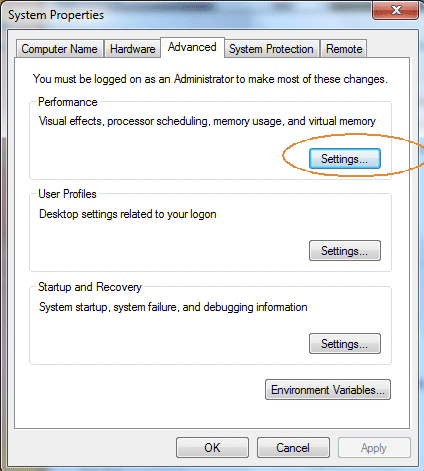
2. Click the Advanced System Settings

3. Click Performance - Settings button
4.
Click Data Execution Prevention tab - select "Turn on
DEP for all programs and services except those I select".

5.
Click the Add button and search for the file "dncSoftware.exe"
and then click the Open button.

6.
dncSoftware is added to the list, tick the box next to it. Then
click OK.
Windows
will probably say that the effects will take place next time
you start the computer.

|


